
USEFUL LINKS
MORE
USEFULL LINKS
MORE
Frequently Asked Questions (FAQs)
General FAQs 19
Build FAQs 12
Aftercare FAQs 16
Legal & Compliance 19
WeHear App 10
App Installation & Onboarding
Home Screen & Management
Personalized Audio
Shortcuts & Widgets
SphereLingo: AI Notes
SphereLingo: 1 to 1 Translator
SphereLingo: Group Translation
SphereLingo: Live Translation
SphereLingo: Learn a Language
Device Companion (BLE) Features
General FAQs
What Bluetooth version do the SafeBuds use?
⌄
The SafeBuds utilize Bluetooth Version 6.0. This advanced standard supports a stable connection distance of up to 10 meters.
What is the maximum wireless range for these earbuds?
⌄
The earbuds maintain a reliable connection within a transmission distance of ≤ 10 meters, allowing reasonable freedom of movement.
How much battery capacity does each earbud have?
⌄
Each individual earbud is equipped with a 50mAh battery, supporting approximately 6–8 hours of continuous listening.
What is the battery capacity of the charging case?
⌄
The charging case houses a 300mAh battery, allowing multiple recharges of the earbuds on a single case charge.
How long is the total playtime?
⌄
The device offers approximately 8 hours or more of playtime at 60% volume. Actual duration may vary depending on usage.
How long does it take to charge the earbuds?
⌄
The earbuds take about 1.5 hours to fully charge inside the case. Indicator lights turn off once charging is complete.
How long does it take to charge the case?
⌄
The charging case takes approximately 1.5 hours to fully charge. A solid red light indicates full charge.
Does the device support dual connectivity?
⌄
Yes, SafeBuds support dual-device connectivity, allowing seamless switching between two paired devices.
Do the earbuds turn on automatically?
⌄
Yes, removing the earbuds from the case automatically powers them on. Manual activation is also possible.
Is there an auto power-off feature?
⌄
Yes, the earbuds automatically power off if no Bluetooth connection is detected within 5 minutes.
How do I know if the battery is low?
⌄
When battery drops below 20%, the red LED flashes three times and a “Battery Low” voice prompt is heard.
What kind of speaker technology is used?
⌄
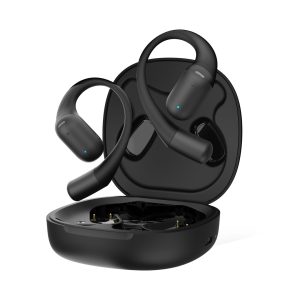
SafeBuds use OWS (Open Wearable Stereo) technology for open-ear listening without blocking the ear canal.
How do I adjust the volume?
⌄
Double-tap the left earbud to increase volume and the right earbud to decrease volume, if gestures are not remapped.
How do I skip tracks?
⌄
Long press the left earbud to skip forward and the right earbud to go to the previous track.
How do I answer or end a phone call?
⌄
Single tap either earbud to answer or end calls, and to play or pause music.
How do I reject an incoming call?
⌄
Long press either earbud to reject an incoming call.
Can I use voice assistants with SafeBuds?
⌄
Yes, triple-tap either earbud to activate voice assistants like Siri or Google Assistant.
What does a solid blue light on the case mean?
⌄
A solid blue light indicates that the earbuds are charging inside the case.
What is the required power input for charging?
⌄
SafeBuds require a 5V / 220mA power input for safe and efficient charging.
What is the weight of the SafeBuds?
⌄
The total weight of the device is approximately 66 grams, and each earbud weighs about 6 grams.
What type of fit design do SafeBuds have?
⌄
SafeBuds feature an open-ear design that does not enter the ear canal, prioritizing comfort and situational awareness.
Are the ear hooks adjustable?
⌄
Yes, the ear hooks can be adjusted slightly for comfort. They curve behind the ear to hold the device securely in place.
How do the earbuds sit on the ear?
⌄
The speaker rests gently near the ear without insertion, while the hook wraps behind the ear to maintain stability.
Is the design suitable for wearing with glasses?
⌄
The slim open-ear hook design is compatible with most glasses, though comfort may vary depending on the user.
Can the case charge the buds while open?
⌄
Yes, but it is recommended to keep the charging case closed to ensure proper contact and secure charging.
Where are the Left and Right markings?
⌄
Each earbud is marked with “L” and “R,” and the charging case slots also have corresponding markings.
Does the device have physical buttons?
⌄
No, SafeBuds use a touch-sensitive control area, giving the device a clean, button-free design.
Is the charging case magnetic?
⌄
Yes, the case securely holds the earbuds using magnetic contact, ensuring automatic charging when placed inside.
Are there microphones on both earbuds?
⌄
Yes, both earbuds include microphone ports, allowing clear voice pickup from either side during calls.
Is the battery replaceable?
⌄
No, the battery is internal and rechargeable but not user-replaceable. Disassembly is not recommended.
Does the build support sweat resistance?
⌄
The build can handle light sweat during use, but it is not fully waterproof. Avoid heavy rain and wipe dry after use.
How should I clean the SafeBuds?
⌄
Wipe the SafeBuds after every use to remove sweat or moisture. Use a dry cloth and pay special attention to the charging port area.
Why is cleaning the charging contacts important?
⌄
Regular cleaning prevents the buildup of salt or residue, which can corrode the contacts and reduce the product’s lifespan.
Can I use the SafeBuds in the rain?
⌄
No, avoid exposing the product to rain or moisture. Moisture exposure can cause electrical failure or fire risk.
How often should I charge the device if stored?
⌄
If unused for long periods, charge the device once every month to maintain battery health.
Can I disassemble the product for repairs?
⌄
No, do not open, disassemble, or modify the product. Unauthorized modifications may be dangerous and void the warranty.
What should I do if I experience technical issues?
⌄
Contact WeHear after-sales service for professional technical assistance and safe troubleshooting.
Are there risks with magnetic cards?
⌄
Yes, avoid placing magnetic strip cards near the device, as prolonged contact may cause demagnetization or interference.
Is the product safe for children?
⌄
Store the product away from children and pets. Minors should use the product only under adult supervision.
How do I reset the buds if they won't pair?
⌄
Remove the buds from the case and tap the touch area 5 times within 3 seconds. Power them off, then turn them back on by placing them in the case or holding the touch area for 5 seconds. This factory reset clears previous pairing data.
What happens if I leave the buds out of the case?
⌄
If not connected to Bluetooth, the buds will auto power off after 5 minutes to conserve battery.
Can I use household cleaners on the device?
⌄
No, only wipe the device with a dry cloth. Avoid harsh chemicals that may damage the finish or internal components.
Is it safe to charge the device if it is wet?
⌄
No, ensure the device is completely dry before charging to prevent corrosion or electrical damage.
Where can I find more support information?
⌄
Visit www.wehearglobal.com or scan the QR code in the user manual for additional guides and support.
What is the contact email for customer care?
⌄
You can contact customer support at ccare@wehearglobal.com for service-related inquiries.
Is there a phone number for support?
⌄
Yes, you can reach WeHear Innovations Private Limited at +91 9033047732 for customer support.
Does the product require firmware updates?
⌄
Firmware updates, if required, are typically handled through the WeHear App when connected to the device.
Does this device comply with FCC rules?
⌄
Yes, this device complies with Part 15 of the FCC Rules, ensuring it meets US standards for electronic interference.
Does the device meet RF exposure guidelines?
⌄
Yes, the device is designed to comply with FCC guidelines for RF exposure and is safe for use near the body.
What is the FCC ID for SafeBuds?
⌄
The FCC ID for SafeBuds is 2BPY2-SAFEBUDSS1, which identifies the product’s certification record.
Which IS standard does the device follow?
⌄
The device follows the IS 616:2017 standard, which is a BIS safety standard for audio and electronic equipment.
What is the Registration Number (R-Number) for BIS Standard?
⌄
The BIS registration number is R-72015148, indicating compliance with BIS standards.
What is the extent of the company's liability?
⌄
The company’s liability is limited to the purchase value of the product and excludes incidental or consequential damages.
Does the warranty cover misuse?
⌄
No, damages caused by misuse or failure to follow instructions are not covered under warranty.
Does the manual constitute a legal agreement?
⌄
Yes, the manual outlines warnings and liability limitations that define the legal terms of product use.
What does the warranty cover?
⌄
The 1-year warranty covers manufacturing defects such as charging issues, sound problems, or component failures during normal use.
Can I return or get a replacement for these?
⌄
Replacements are provided only for manufacturing defects within the warranty period, subject to evaluation by customer support.
Which safety certifications do SafeBuds have?
⌄
SafeBuds are certified by BIS (Bureau of Indian Standards) and WPC (Wireless Planning and Coordination).
How can I get a GST invoice for my purchase?
⌄
You can request a GST invoice from your retailer or through the WeHear website. Corporate bulk purchases also include GST documentation.
Does the warranty work if I'm travelling or living abroad?
⌄
Yes, the 1-year warranty is international and valid regardless of your location, provided you have proof of purchase.
What if I accidentally damage them?
⌄
Accidental damage is not covered under warranty, but you may contact customer support for paid repair options.
Where can I get help if I have problems?
⌄
You can contact WeHear customer support via the website, email, or phone number provided in the manual.
What's not covered under warranty?
⌄
The warranty does not cover lost or stolen earbuds, accidental damage, water damage beyond rated protection, normal wear and tear, or unauthorized repairs.
Do I need to register my warranty?
⌄
Warranty registration is recommended via the QR code on the packaging or the WeHear website to simplify future claims.
What if I bought these as a gift and need warranty service?
⌄
The warranty is transferable. The recipient can claim warranty service using the original purchase receipt.
Where can I find the WeHear App?
⌄
You can download the WeHear App from the Google Play Store for Android or the Apple App Store for iOS. Simply search for “WeHear” or scan the QR code provided in your user manual.
Is the app compatible with other headphone brands?
⌄
No, the WeHear App is designed exclusively for WeHear SafeBuds and does not work with other headphone brands. Features like translation and AI notes remain locked without SafeBuds connected.
Is an internet connection required to use the app?
⌄
Yes, a stable Wi-Fi or mobile data connection is required for most features, including login, translations, and syncing AI notes.
How do I create a new account?
⌄
You can sign up using your mobile number and verify it via a 6-digit OTP. Alternatively, you can use the “Continue with Google” option for quick sign-in.
What personal details do I need to provide?
⌄
During setup, you are required to provide your First Name, Last Name, Gender, and Date of Birth. You may also upload a profile photo to personalize your account.
What happens if I don’t connect my SafeBuds to the app?
⌄
If SafeBuds are not connected, SphereLingo features will remain inactive. Pairing a device is required to unlock the full functionality of the app dashboard.
How do I connect my device within the app?
⌄
On the Home Page, tap the “Connect Device” button. Select your SafeBuds from the available Bluetooth list to complete the connection.
Can I check my battery percentage in the app?
⌄
Yes, once connected, the Home Page displays the battery percentage of your SafeBuds. This battery display feature is exclusive to Android devices.
How do I access my profile settings?
⌄
Tap your profile picture located in the top-right corner of the Home Page to open the profile menu and manage account settings.
How do I change the language used for app features?
⌄
Go to the Profile menu and select “Feature Language.” Choose your preferred language and tap “Update.” This feature is exclusive to Android.
Where can I find the Privacy Policy?
⌄
The Privacy Policy can be accessed through the Profile menu, where details about data handling and privacy practices are provided.
How do I log out of the application?
⌄
Select the “Logout” option at the bottom of the Profile menu to sign out and return to the login screen.
How do I delete my account?
⌄
Choose the “Delete” option at the bottom of the Profile menu. This will permanently delete your account and all associated data.
What are Audio Presets?
⌄
Audio Presets are pre-tuned sound profiles designed for specific music genres such as POP or ROCK. They let you switch audio settings instantly without manual adjustments.
How do I use the Custom Fit equalizer?
⌄
Select “Custom Fit” to manually adjust frequencies on the graph. Drag the black dots upward to boost a frequency or downward to reduce it.
Do I need to save my custom audio settings?
⌄
Yes, after adjusting the equalizer graph, tap the “Save” button. The changes are applied immediately once saved.
How do I add a new shortcut?
⌄
On the Home Page, locate the empty tile with the “+” icon labeled “Add Shortcut.” Tap it and select a feature such as “Live Translation” to pin it.
How do I remove a shortcut I no longer need?
⌄
Long press the shortcut tile you want to remove until a menu appears. Tap “Delete Widget” to remove it and return the slot to an empty state.
Can I change a shortcut without deleting it first?
⌄
Yes, long press the existing shortcut and select “Edit Widget.” You can then choose a new feature to replace the current one.
What are the requirements for using AI Notes?
⌄
You need an active internet connection to process audio and generate summaries. Additionally, you must select the correct spoken language before starting the recording.
How do I start a recording in AI Notes?
⌄
Open the AI Notes section and tap the “+” button to create a new note. Then tap the microphone icon to begin recording.
What happens while I am recording?
⌄
During recording, the app shows a waveform visualization and displays transcribed text in real time so you can verify speech capture.
How do I view the full transcript versus the summary?
⌄
You can switch between the “Summary” tab for AI-generated notes and the “Transcript” tab to view the complete word-for-word transcription.
How do I share my AI Notes?
⌄
Tap the Share icon in the top-right corner to access export options, including the original audio, a summary PDF, or a full transcript PDF.
How does “Individual Buds Mode” work?
⌄
In Individual Buds Mode, you share one earbud with the other person so both participants wear a device. Translations are played directly into each person’s ear, enabling a more natural conversation.
How does “Phone Mode” work?
⌄
In Phone Mode, you wear both earbuds while the other person speaks into the phone. This mode is ideal for quick interactions when you prefer not to share your headset.
Can I see the text of the conversation?
⌄
Yes, the app displays a text log of the conversation separated by language, allowing you to visually verify translation accuracy.
How do I access past translation sessions?
⌄
Tap the “History” bar at the bottom of the main feature screen to view a list of previous conversations. You can open any session to see the full text log.
Can I delete old translation history?
⌄
Yes, open the specific conversation you want to remove and tap the Trash Can icon. This will permanently delete that session from the app.
How do I create a new group?
⌄
Open the Group Translation section and tap the “+” button. Select “Create Meeting,” enter a Group Name and Description, then tap “Create Group” to generate a QR code for joining.
How do participants join a group?
⌄
Participants should select “Join Meeting” and scan the QR code shared by the group creator. After scanning, tap “Start Conversation” to join the group.
How do I send a message in a group?
⌄
You can type a message manually or use the “Hold to Speak” button for voice input. The app automatically translates the message before sending it.
In what language do I see incoming messages?
⌄
All incoming messages are displayed in your selected Feature Language. For example, messages spoken in English will appear translated into Hindi for a Hindi user.
Can I listen to the messages instead of reading them?
⌄
Yes, text-to-speech is supported. Tap the Speaker icon next to any message to hear it read aloud in your chosen language.
How does Live Translation differ from 1 to 1 Translation?
⌄
Live Translation is designed for interruption-free, passive listening only. Unlike 1 to 1 Translation, it does not support two-way conversations and is used to listen and understand foreign audio sources.
Where should I place my phone for Live Translation?
⌄
Place your phone’s microphone close to the audio source, such as near a speaker, TV, or person speaking. The phone acts as the input device to capture foreign audio.
How do I start using Live Translation?
⌄
Select your preferred language and the speaker’s language in the feature menu, then tap “Start” to begin Live Translation with audio played directly in your earbuds.
How does the app evaluate my pronunciation?
⌄
After you record yourself speaking a phrase, the app analyzes your voice and provides an Accuracy Score. A lower score encourages you to retry, while a higher score indicates correct pronunciation.
Can I adjust the speed of the audio tutor?
⌄
Yes, tap the Speedometer icon to change the playback speed to 0.50x or 1.50x. This helps you better understand pronunciation nuances before practicing.
How do I rename my device?
⌄
Go to the “Device” tab and select “Rename Device.” You can enter a custom name or choose a smart suggestion like “Yash on Rock.” Currently, device names are limited to 15 characters.
How do I reset my touch controls?
⌄
Open the Customize Control page and tap the reset button located in the top-right corner. This will reset Single Tap controls on Android and all touch actions on iOS.
What gestures can I customize?
⌄
You can customize Single Tap, Double Tap, Triple Tap, and Long Press gestures. Adding new gesture types, such as swipes, is not supported.
How do I perform a firmware update?
⌄
Go to the Device tab and tap the “Firmware Update” tile. If an update is available, tap “Update” and keep the device connected until the process completes.
How do I add a new device in PairHub?
⌄
Select “Pair New Device” in the PairHub menu to enable pairing mode on your SafeBuds. Then open Bluetooth settings on the new device (such as a laptop) to complete the connection.
How do I switch between devices using PairHub?
⌄
Use the toggle switches next to the list of known devices to connect or disconnect them. Turning a switch ON will immediately attempt to connect to that device.